School newsletters, flight confirmations, sports schedules. Magic Import lets you skip the manual copy-paste: forward any event-related email to your family's unique address, and FamilyWall adds the events to your shared calendar automatically.
With Magic Import you can:
- Import events from any email: newsletters, booking confirmations, appointment reminders, sports schedules
- Extract events from PDF and image attachments, not just email text
- Import multiple events from a single email in one go
- Let any Circle member contribute, not just the admin
- Review and manage every imported event in Import History
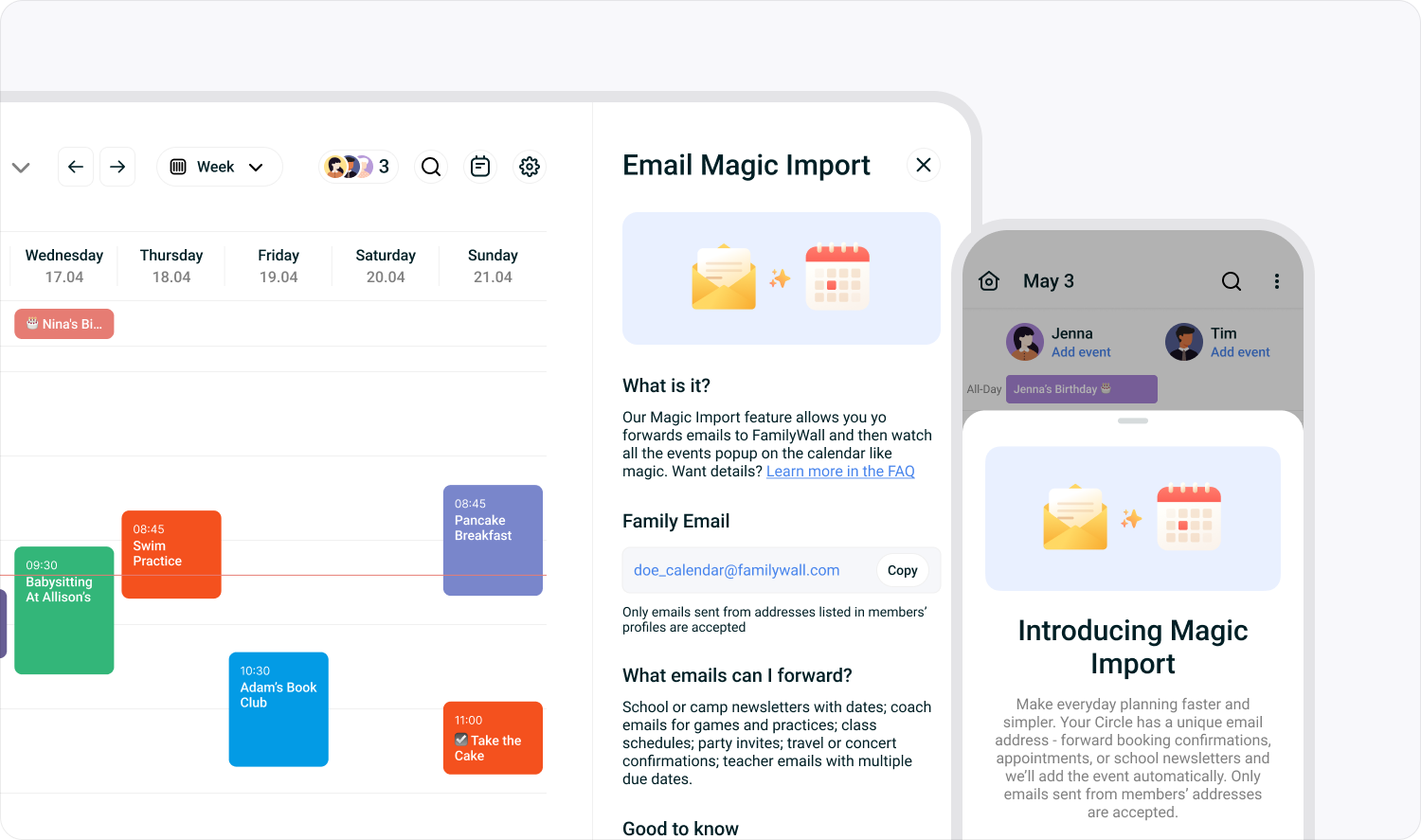
This feature requires a Premium subscription. If you're on a free plan, tap the feature to learn more about upgrading.
Set up your family email address
Each Circle gets one unique address in the format prefix@import.familywall.com. This is a one-time setup that only a Circle admin can do.
- Go to the Magic Import via Email screen (see the section below for your platform).
- Tap Create Family Email.
- Choose a prefix for your address (for example,
doe_family). - Tap Save. The address is ready to use straight away.
Once set up, admins can edit the prefix or delete the address at any time from the same screen. If you're not a Circle admin, you'll see a message asking you to contact your admin to create the address first.
Find your family email address
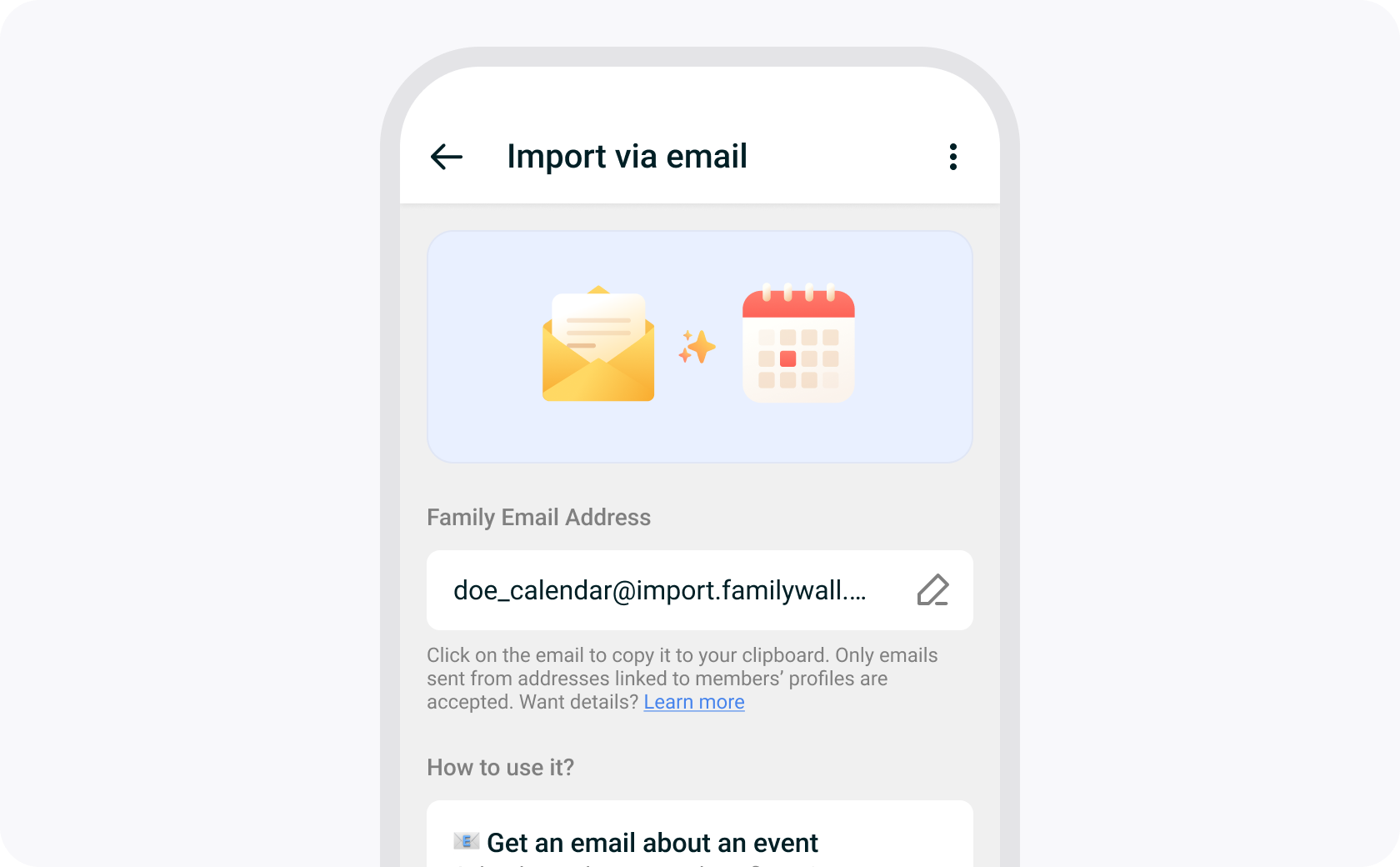
iOS
- Open the Calendar tab.
- Tap the gear icon (⚙) in the top-right corner to open the side panel.
- Scroll to the Connect a calendar section and tap Import from email.
- Your family email address is shown on screen. Tap it to copy it to your clipboard.
Android
- Open the Calendar tab.
- Tap the panel icon in the top-right corner to open the side panel.
- Scroll to the Connect a calendar section and tap Import from email.
- Your family email address is shown on screen. Tap it to copy it to your clipboard.
Web
- Open the Calendar.
- Click the gear icon (⚙) in the top-right toolbar.
- Select Magic Import via Email.
- Your family email address is shown in the panel. Click it to copy it to your clipboard.
Forward an email to import events
Open any event-related email in your inbox (a school newsletter, a flight confirmation, a sports schedule, a medical appointment reminder) and forward it to your family email address.
FamilyWall extracts the event title, date, time, location, and notes. If the email contains multiple events, all of them are created at once. Attachments are also supported: PDFs and images (JPG, PNG, HEIC) up to 20 MB.
You must forward from the email address linked to your FamilyWall profile. This is how FamilyWall identifies you as a Circle member and keeps your family calendar secure. Emails from unrecognized addresses are not processed.
What happens next
- FamilyWall processes the email and adds the event(s) to your shared calendar. This usually takes 1 to 5 minutes.
- You'll receive a confirmation email at the address you forwarded from, listing every event that was created.
- A push notification lets you know the events are ready to review.
- The events appear on the calendar for everyone in your Circle.
- Each imported event is also listed individually in Import History, accessible from the Magic Import screen.
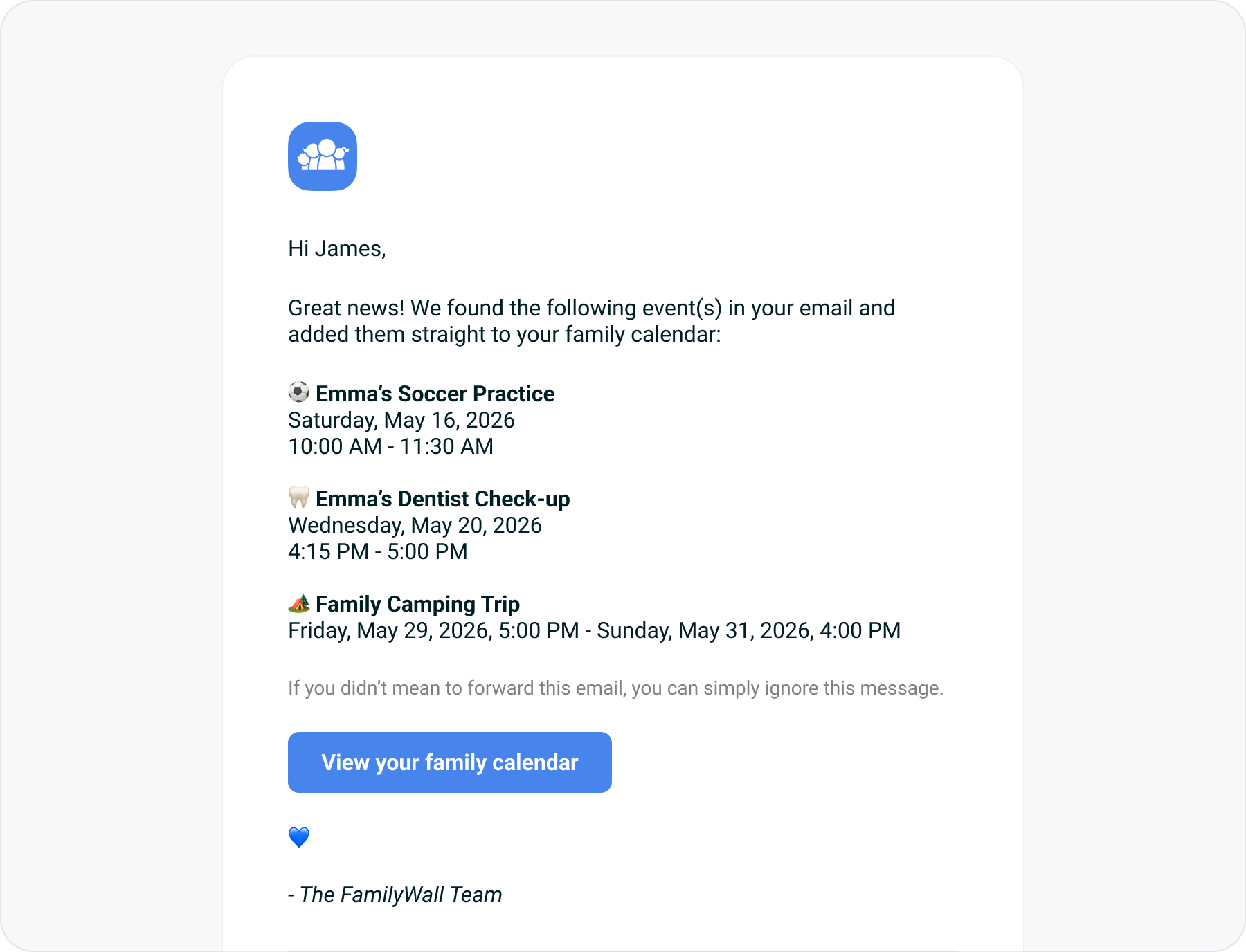
If something goes wrong
If FamilyWall can't process your email, you'll receive an error email explaining what happened. No events are created. Here are the most common situations:
- No event found: FamilyWall couldn't extract any event details from the email or its attachments. Try forwarding again with an email that includes a clear date, time, or event title.
- Unrecognized sender: The address you forwarded from isn't linked to your FamilyWall profile. Add it to your profile settings and try again.
- Monthly limit reached: Your Circle has hit the 1,000-import limit for the month. Imports reset at the start of the next month. You can still add events manually in the meantime.
- Calendar limit reached: Your shared calendar has reached 25,000 events. Delete some older events from the calendar before trying again.
- Unexpected error: Something went wrong on FamilyWall's end. Try forwarding the email again in a few minutes.
Edit or delete an imported event
Imported events work exactly like any other event on your FamilyWall calendar. Tap any event to open it, then select Edit to update the details or Delete to remove it. Changes are reflected immediately for everyone in your Circle.
You can also manage recently imported events directly from Import History on the Magic Import screen, where each imported event is listed individually.
Best practices
- Save your family email address as a contact on your phone so it's always one tap away when you want to forward an email.
- Any Circle member can forward emails, not just the admin, as long as they use the email address linked to their FamilyWall profile.
- Emails with clear dates and times work best. If the email has a PDF or image attachment with event details, forward the whole email including the attachment.
Still need help?
We do our best to make Magic Import work smoothly, but every now and then something slips through. If you run into a problem, have a question, or just want to share what you think of the feature, we'd love to hear from you. Get in touch with our support team and we'll get back to you as soon as we can.
Related articles
Was this article helpful?
That’s Great!
Thank you for your feedback
Sorry! We couldn't be helpful
Thank you for your feedback
Feedback sent
We appreciate your effort and will try to fix the article